

No, you do not need a smart TV to use beIN STREAM. beIN STREAM box operates well on your standard TV, granting instant access to a vast array of Internet-based beIN SPORTS channels.
Archives: FAQs
What are the requirements for using beIN STREAM box?
You will need an HDMI port on your TV, a stable Wi-Fi Internet connection, and a compatible device such as a smartphone or tablet for initial setup.
Can the beIN STREAM box be configured with wired Ethernet?
beIN STREAM box exclusively supports Wi-Fi connectivity and cannot be configured with a wired Ethernet connection.
Can I use beIN STREAM box with any TV?
Your beIN STREAM box is compatible with most TVs equipped with an HDMI port. However, it’s crucial to consult your TV’s User Manual to verify support for HDMI 1.4 or higher to ensure seamless compatibility.
How do I set up a beIN STREAM box?
To set up your beIN STREAM box , simply plug it into your TV’s HDMI port and follow the on-screen prompts to connect to your Wi-Fi network. For detailed instructions, refer to the video here .
Can I power the beIN STREAM box using my TV’s USB port?
Indeed, you can power the beIN STREAM device via your TV’s USB port. Alternatively, you may use an external USB power adapter with a minimum capacity of 2.5 watts for consistent power delivery to the device.
How do I connect to a different home network?
a. Navigate to the Settings menu on your device and locate the Wi-Fi- related information.
b. Choose the Reset Wi-Fi option; this action will reset the network credentials and allow you to set up the beIN STREAM box again. Follow the on-screen prompts and connect to a different Wi-Fi network.
What is beIN Connect ?
beIN Connect is our streaming app that allows you to stream all the channels included in your beIN STREAM package on your smartphone, tablet, or computer anywhere and anytime.
Can I watch on multiple device simultaneously ?
No, simultaneous streaming is not supported on beIN Connect. This is to ensure the best streaming quality for all our users.
How to cast from beIN CONNECT to TV?
beIN CONNECT supports Chromecast and Apple TV AirPlay casting.
Chromecast (for iOS and Android)
When the video is playing on your device, click on the icon as shown on the below screenshot and select your Chromecast device. Please make sure your device and Chromecast are connected to the same network. Please note for iOS, the app needs access to “Local Network”. Local network access for beIN CONNECT can be enabled in the iOS setting.
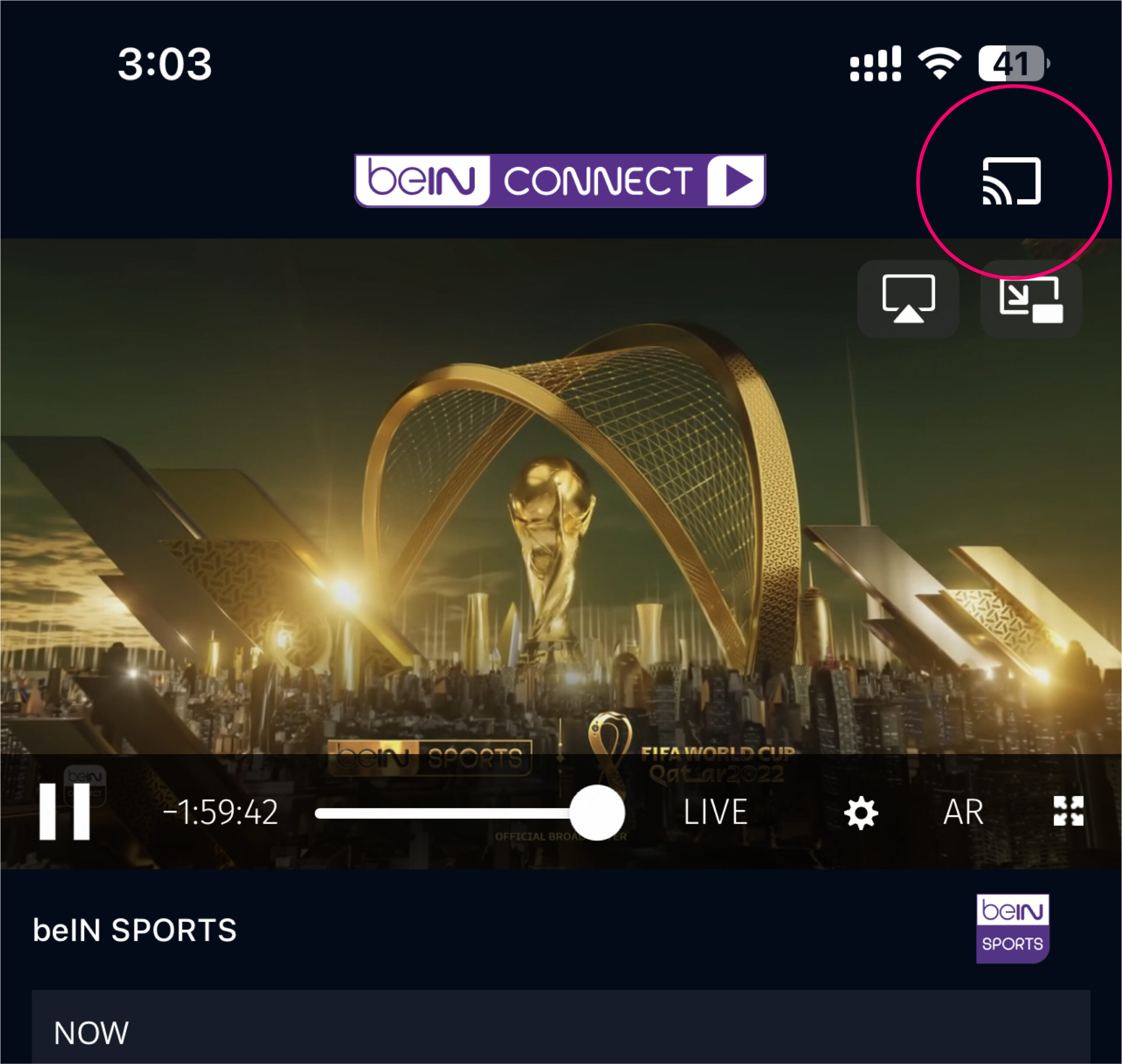
For more info about casting to Chromecast, please visit : Google page
Apple TV /AirPlay (for iOS only)
When the video is playing on your device, click on the icon as shown on the below screenshot and select your Apple TV device. Please make sure your device and Apple TV are connected to the same network.
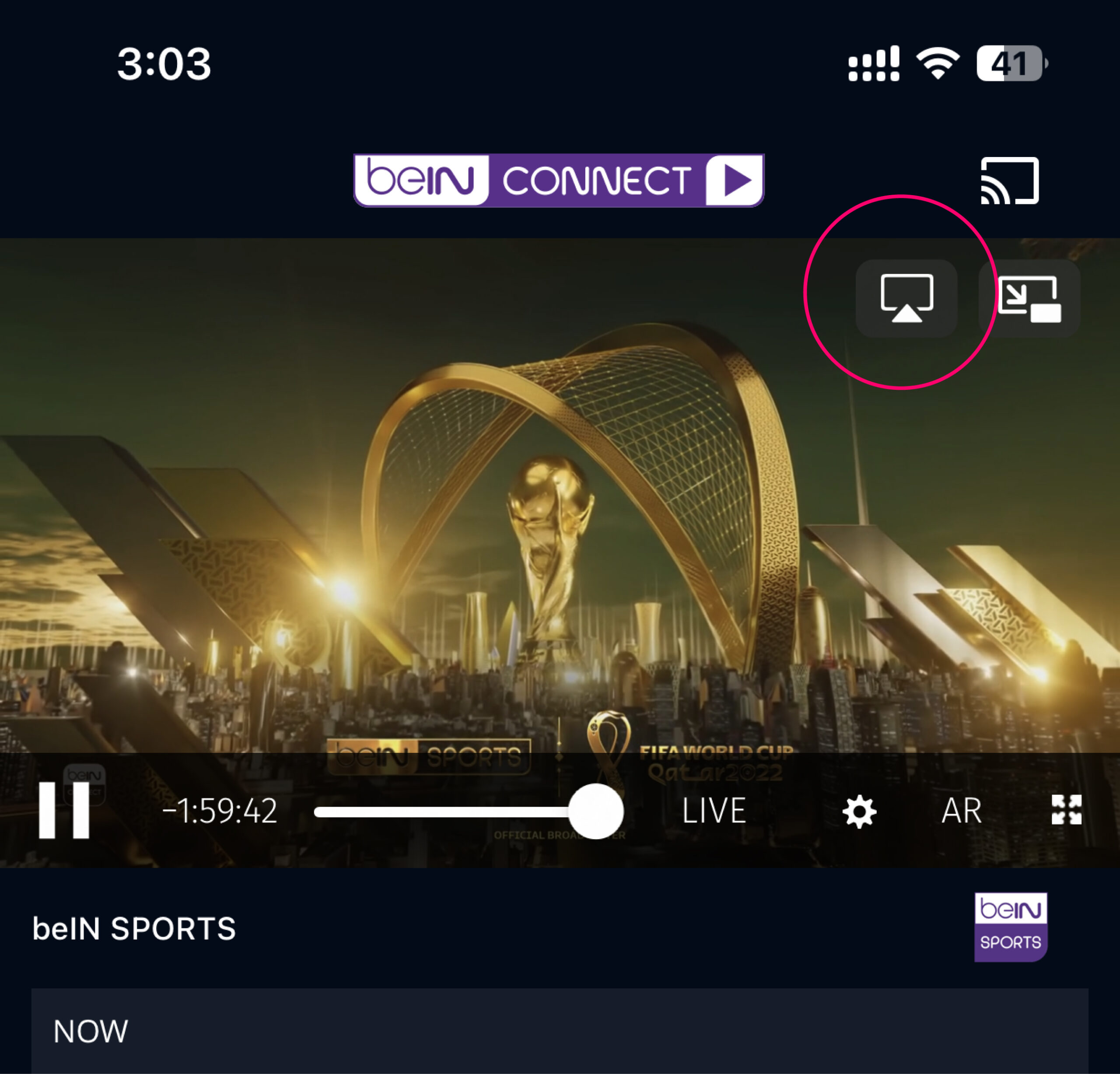
For more info about casting to AirPlay, please visit : Apple Page